


🚀 Explore this awesome post from Hacker News 📖
📂 **Category**:
💡 **What You’ll Learn**:
Today we’re announcing Intelligent Terminal version 0.1, an open-source experimental fork of Windows Terminal with native agent integration.
Get started
Install from the Microsoft Store: Intelligent Terminal on the Microsoft Store
Install via WinGet:
winget install Microsoft.IntelligentTerminal
Visit our GitHub repository for documentation and to file issues.
Here’s a look at what’s in this experimental stage. We will continue to iterate and listen to you, the community, as we improve the product, fix bugs, and add new features.
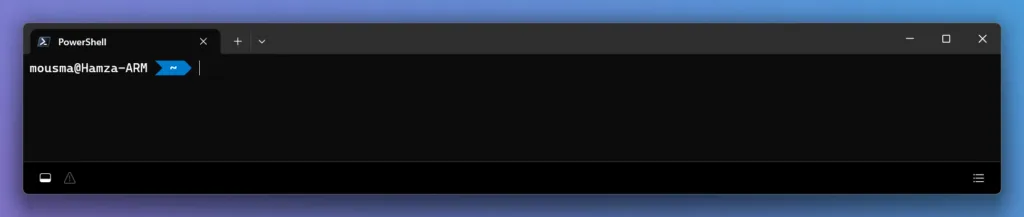
The agent status bar at a glance
The agent status bar sits at the bottom of the window and gives you quick access to everything agent-related. It’s a persistent, minimal control surface so you’re never more than one click away from your agents.
- On the left: the show/hide agent pane toggle and the error detection icon, which lights up when a fixable error is detected.
- On the right: the agent management icon (three horizontal lines) that opens your session management panel.
The agent pane is your pair-programmer in the shell
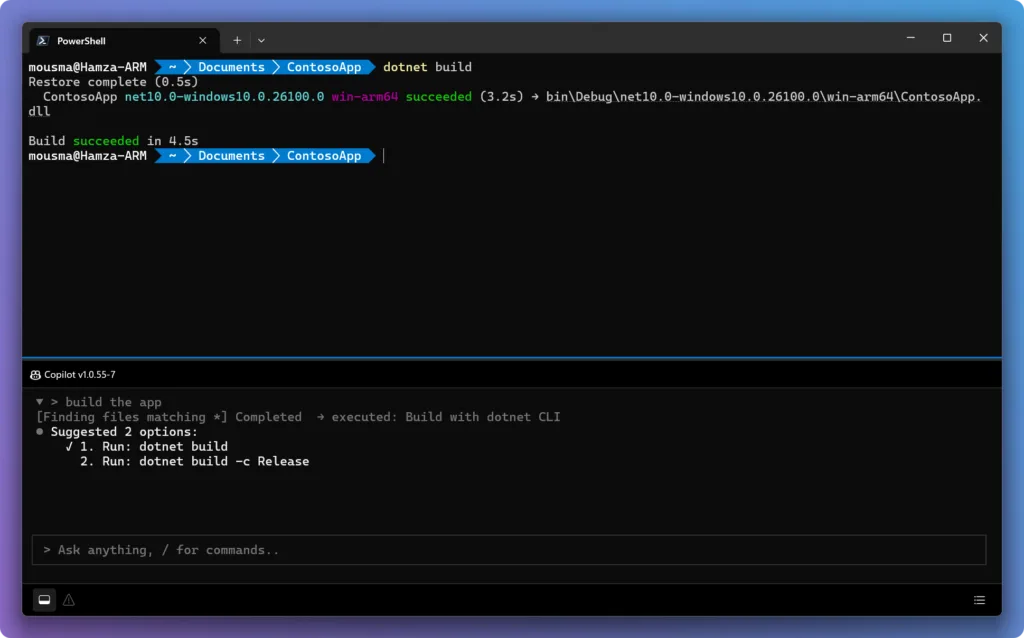
The core interaction in Intelligent Terminal is the agent pane: a context-aware, dedicated, configurable, docked pane with your agent CLI of choice.
Have you ever entered a PowerShell command, got an error, copied it, opened the browser, pasted it, and jumped through multiple forum posts to fix it? Or are you constantly copying and pasting between your agent session/app and your shell just to provide enough context on the issue?
Well no more: the agent pane has always-ready context on your shell output.
GitHub Copilot CLI is the default agent experience, but Intelligent Terminal works with any Agent Client Protocol (ACP)-compatible agent. All you need to do is install your preferred agent CLI on your PC, and Intelligent Terminal will detect it.
Show or hide the agent pane anytime with Ctrl+Shift+.. Quickly switch focus to and from the agent pane with Ctrl+Shift+I. It’s there when you need it and out of the way when you don’t. Ask it to explain an error, then follow up with “try a different flag” and it keeps the thread going. If the agent needs to do multiple or complex tasks, it will spin up background tasks in new tabs so your active shell stays focused.
Automatic error detection
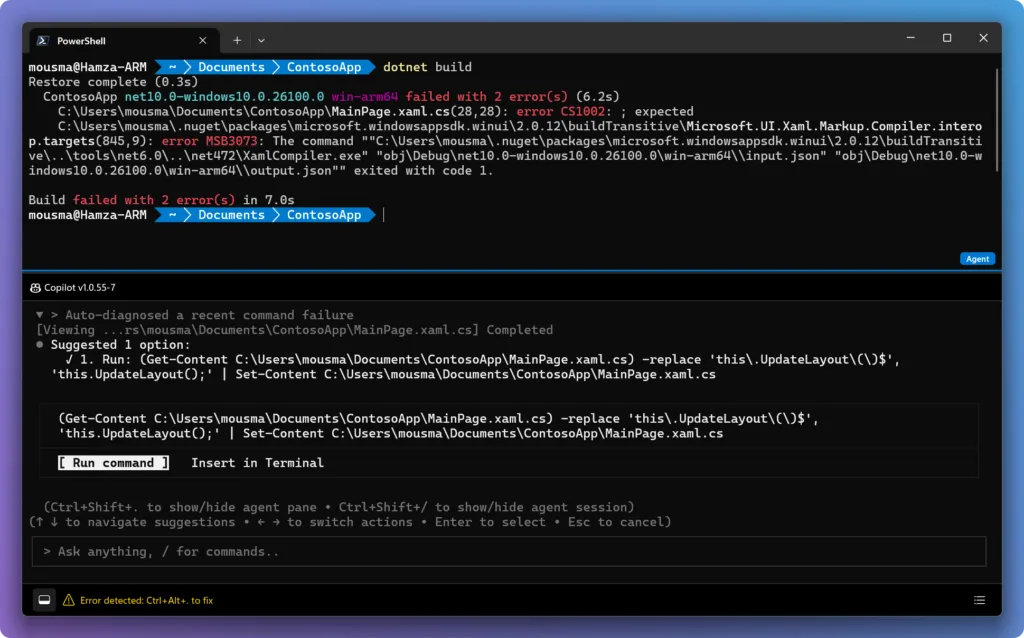
When a command fails, Terminal picks it up and an indicator appears in the agent status bar. Clicking this or Ctrl+Alt+. opens the agent pane with the error context already loaded. The agent can explain what happened and can suggest or run the best fix. Configure your settings to have Intelligent Terminal just auto-detect errors, or to have it also auto-suggest fixes.
Agent management
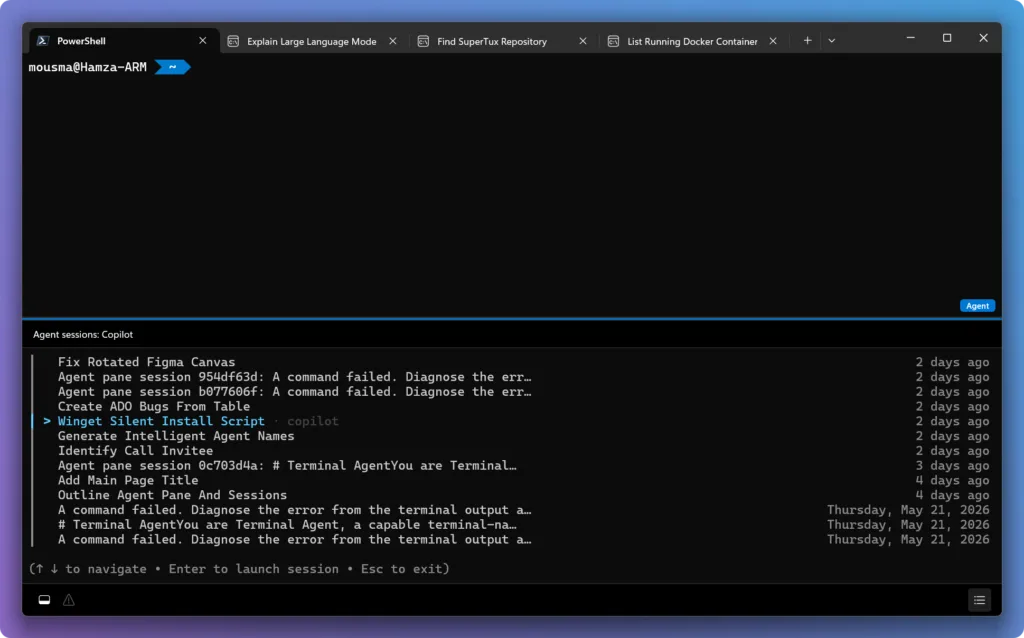
When you are running multiple agents across tabs or kicking off background tasks, you need a way to keep track of everything. Today, jumping back into prior sessions can require several clicks and keystrokes in the shell. The agent management panel now gives you that at a glance.
You’ll see all your active agents and their current status, plus past sessions you can jump back into. Pick up a workflow where you left off, check on a long-running task, or dismiss completed ones. No more losing track of what you asked an agent to do three tabs ago.
Click the agent management icon in the status bar or press Ctrl+Shift+/ to open it at any time.
Command Palette as an entry point
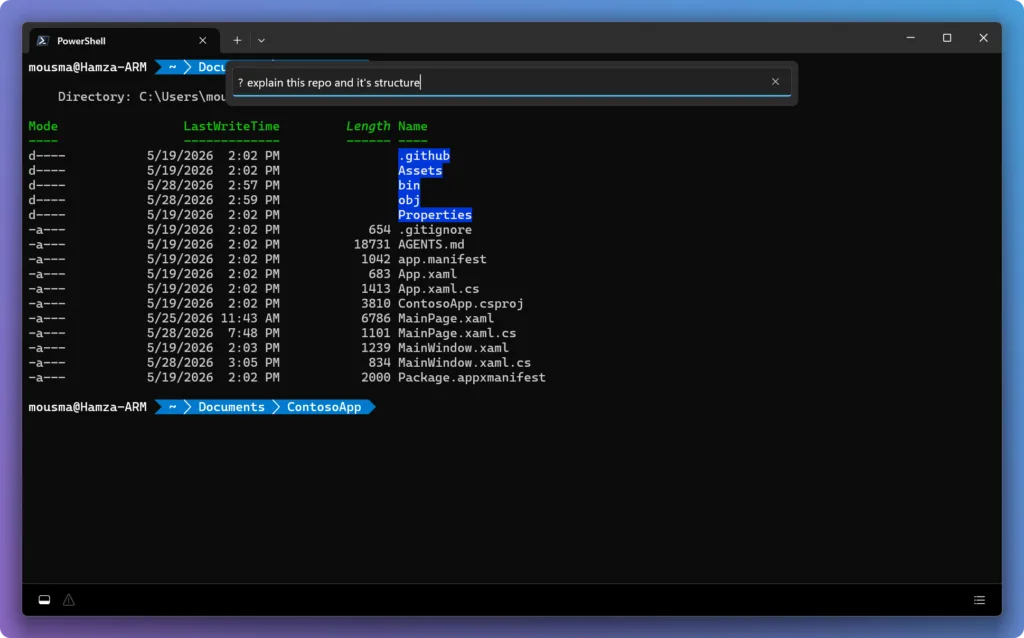
The Command Palette is another quick way to kick off an agent task. Type ? followed by your prompt/task and the terminal injects context from the active pane and starts the agent in a background tab so your shell isn’t blocked. Alt+Shift+/ gets you directly into prompt mode in Command Palette.
Configurable with your favorite agent
Everything is configurable through the Terminal settings under “Agent” including:
- Agent and model: GitHub Copilot is the default agent, but you can configure any ACP-compatible agent, including custom or local agents both for your agent pane and for command palette.
- Pane placement: top, bottom, left, or right
- Auto error detection: Give the agent pane the ability to catch and suggest fixes to errors automatically
What’s next?
Intelligent Terminal is being built from your feedback. We are focused on delivering an experience based on the way developers actually use agents today. With this release, we are deprecating Terminal Chat in Canary. Intelligent Terminal ships as a separate app and installs next to your existing Windows Terminal. If you don’t want an agentic experience in mainline Terminal, nothing changes for you.
This experimental release is the starting point. We would love for everyone to try it out and see how they feel about the experience. Tell us what you want in the Intelligent Terminal, help us grow, and let’s build together.
If you have a feature request or find a bug, submit an issue or visit our GitHub repository.
Thank you!
🔥 **What’s your take?**
Share your thoughts in the comments below!
#️⃣ **#Announcing #Intelligent #Terminal #Windows #Command #Line**
🕒 **Posted on**: 1780422472
🌟 **Want more?** Click here for more info! 🌟
